

Office Equipment Basics
How to Use a Copy Machine: A Step-by-Step Office Guide (2026 Guide)
Everything a new employee needs to make clean copies, scan documents, and troubleshoot a jam without calling for help.
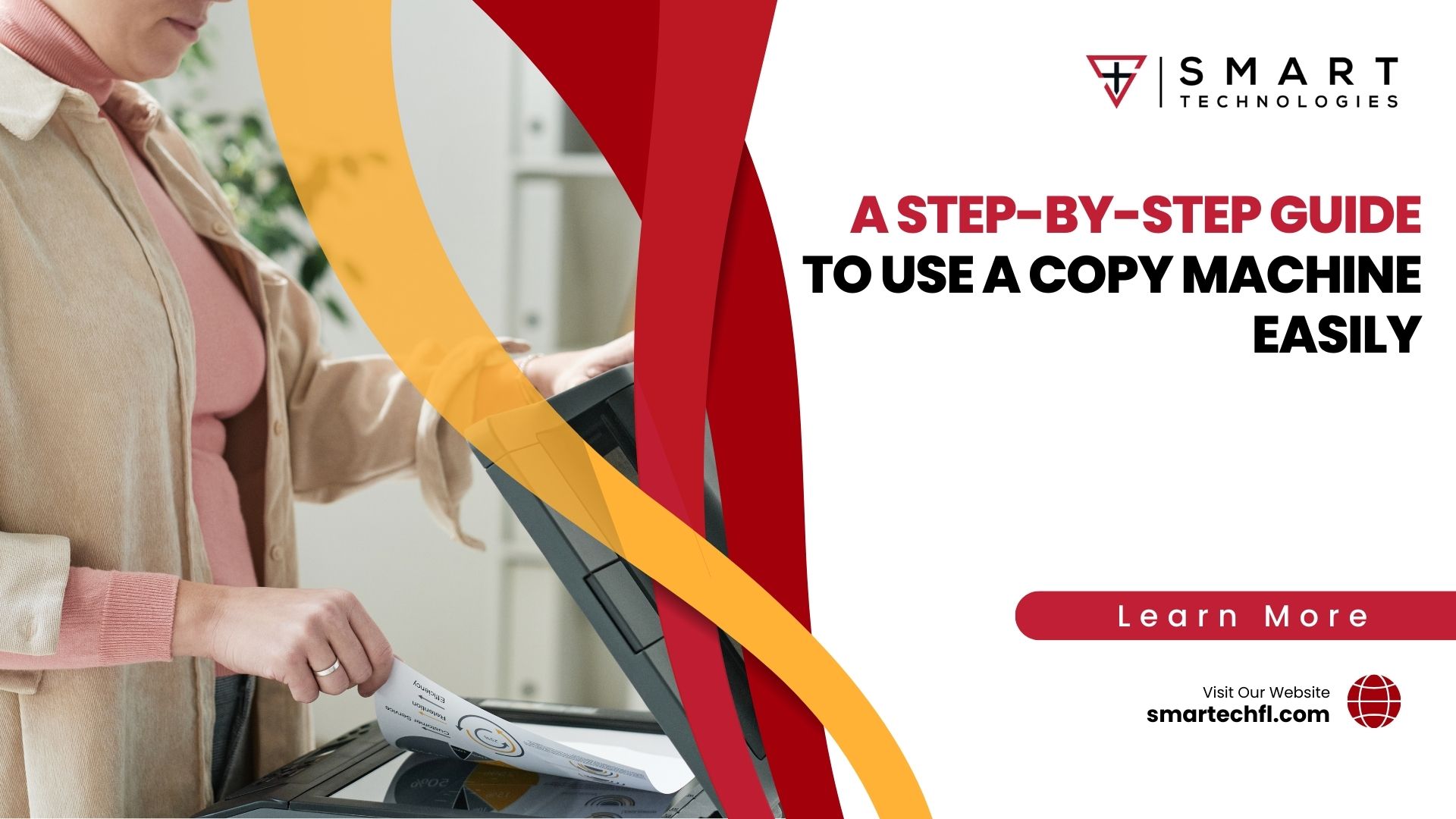
Quick answer: To use a copy machine, power it on and let it warm up, place your document face down on the glass or face up in the feeder, pick your settings (color, size, copy count), then press Start. Most office copiers follow the same core steps, so once you learn one, the rest feel familiar.
The copy machine is not going anywhere
Walk into any office in Daytona Beach or Orlando and you will find one. A copy machine sits at the center of daily work, quietly handling contracts, invoices, flyers, and the occasional lunch menu. Digital tools were supposed to kill paper. They did not.
Here is the reality. The average US office worker still prints around 10,000 sheets a year, roughly 34 pages a day. So knowing how to use a copy machine is a real skill, not a relic. New hires who freeze at the control panel lose time, jam the tray, and interrupt everyone around them.
Smart Technologies of Florida has installed and serviced office copiers across Central Florida since 1999. We have watched thousands of employees learn these machines. And the ones who pick it up fastest all follow the same short sequence. Let us walk through it.
There is another reason to get comfortable at the panel. Research on office printing habits suggests people print around ten documents a day but only actually use four of them. So a confident operator who copies right the first time also wastes less paper and toner. Small habits ripple across a whole office over a year.
Preparing to use a copy machine
Good copies start before you touch a single button. A little prep saves you from smudges, jams, and wasted paper. Rushing is the number one reason copies come out crooked or half printed.
Power on and warm up
Check the power connection first. Then press the power button and wait. The warm-up phase lets the internal drum and fuser reach operating temperature, which is what fixes toner cleanly to the page. Skip it and you risk faint, streaky output. Warm-up usually takes under a minute on modern machines.
Load paper and check toner
Open the paper tray and confirm the right size sits inside. Letter is standard in most Florida offices, though legal and tabloid trays are common too. Fan the stack before loading so sheets do not stick together. Then glance at the toner indicator on the display. Low toner shows up as pale or blotchy copies, so top it off before a big run.
Prep your original document
Remove staples, paper clips, and sticky notes. Any of these can jam the feeder or scratch the glass. Smooth out folds and tears. A clean original is the single biggest factor in a clean copy.
Paper quality matters more than people expect. Cheap, lightweight stock curls in Florida humidity and feeds unevenly, which triggers misfeeds and pale copies. Store your reams flat, sealed, and in a dry cabinet. And keep the copier away from direct air vents and sunny windows, since temperature swings shorten the life of internal parts. These tiny habits stretch years out of a machine.
- Confirm the power connection and switch the machine on.
- Wait for the warm-up cycle to finish.
- Check paper size and fan the stack before loading.
- Glance at the toner level on the panel.
- Strip staples and clips from your original.
Placing your document: glass or feeder?
Every copier gives you two ways to load an original. Picking the right one matters more than most people think. Choose wrong and you get jams or missing pages.

The flatbed glass
Lift the lid and set your page face down against the corner guide, usually marked with an arrow. Close the lid gently. Use the glass for single pages, ID cards, book pages, photos, and anything fragile or oddly sized. It handles delicate originals the feeder would chew up.
The automatic document feeder (ADF)
The ADF sits on top of the lid. Load your stack face up and the machine pulls each sheet through on its own. This is the fast lane for multi-page documents. A 40-page report copies in seconds instead of one exhausting page at a time. Just keep the stack neat and within the marked capacity.
| Situation | Best method | Why |
|---|---|---|
| Single page or ID card | Flatbed glass | Precise placement, no jam risk |
| Multi-page report | Document feeder | Fast, hands-free feeding |
| Book or bound pages | Flatbed glass | Feeder cannot handle spines |
| Photos or glossy stock | Flatbed glass | Protects delicate surfaces |
| Stapled documents (staples removed) | Document feeder | Speed for bulk copying |
Choosing your copy settings
The control panel looks busy. It is not as complicated as it seems. A handful of options cover almost everything you will ever need.
Color or black and white
Black and white is cheaper and faster, so use it for internal drafts. Color makes sense for client-facing material, marketing, and anything with charts. Worth knowing: color pages cost far more per click, which we cover in the cost section below.
Number of copies
Punch in the quantity on the number pad. Running 30 copies of a handout? Set it once and walk away. No need to press the button 30 times.
Paper size and tray selection
Match the tray to your document. Letter for most jobs, legal for contracts, tabloid for posters. Many copiers auto-detect the original size, but confirm on the display to be safe.
Two-sided (duplex) copying
Duplex prints on both sides of the sheet. It cuts paper use roughly in half and gives documents a polished, professional feel. Most offices set this as the default now to save money and reduce waste.
Energy matters too. Copiers draw real power, and leaving duplex on plus enabling sleep mode trims both paper and electricity bills. The ENERGY STAR office equipment program rates machines on efficiency, and picking a certified model pays off over a long lease. Ask about the rating before you sign.
Reduce, enlarge, and collate
Need a legal document shrunk to letter? Use the reduce function. Blowing up a diagram? Enlarge it. And collate keeps multi-page sets in order, so a 10-page packet copied five times comes out as five complete packets instead of a jumbled pile.
- Color vs black and white: match the job to the cost.
- Copy count: set the quantity once on the keypad.
- Duplex: two-sided output to save paper.
- Reduce and enlarge: fit any original to any paper size.
- Collate: keep multi-page sets in the correct order.
Starting the copy process
Now the easy part. Everything before this was setup. Press the green Start button and the machine goes to work.
Watch the first copy as it lands in the output tray. Is it centered? Clear? Correct settings? Check before you commit to a big batch. Catching a problem on copy one beats reprinting 50 crooked pages.
When the run finishes, grab your copies and your original. Do not walk off and leave the original on the glass, a classic office mistake. Then reset the panel for the next person. Small courtesy, big difference in a shared office.
Shared copier etiquette
A copy machine is communal ground. Clear your job when it finishes. Refill the tray if you empty it. And if the toner runs low on your watch, flag it or swap it rather than leaving the mess for whoever copies next. A little consideration keeps the whole office moving. Nobody enjoys walking up to a jammed, empty machine five minutes before a meeting.
One more tip for big jobs. Copying a hundred-page document during the morning rush blocks everyone else. So schedule large runs for quieter stretches, or ask about a print queue that lets people release jobs from their own desks. Busy Daytona Beach and Orlando offices lean on these small workflow tweaks to keep one shared machine from becoming a bottleneck.
Using the scan and send features
Modern office copiers are really multifunction printers, or MFPs. Copying is just one trick. The scan feature might save you more time than anything else on the panel.

Scan to email
Place your document as if copying. Tap Scan, then Email, and either enter an address or pick one from the company directory. The machine turns your paper into a PDF and sends it in seconds. No trip back to your desk to scan separately.
Scan to folder
Many MFPs send scans straight to a shared network folder. Great for archiving contracts or invoices where the whole team needs access. Ask your IT provider to set up the destinations once, and everyone benefits.
Fax, still hanging on
Yes, fax survives. Healthcare and legal offices across Florida still rely on it for signed forms. If your MFP includes a fax line, the steps mirror copying: load the document, enter the number, press Send.
Why scanning beats copying so often
Think before you hit copy. Do you actually need paper, or do you need the information? Scanning to a shared folder means a contract lives in one searchable place instead of six paper copies scattered across desks. It saves toner, filing space, and the frantic hunt for a document nobody can find. Our team helps offices build these digital workflows so the copier becomes an on-ramp to organized files, not a paper factory.
Fixing common copy machine problems
Machines act up. It happens to everyone. Most issues have simple fixes you can handle without a service call.

Paper jams
The most common complaint by far. The display usually shows exactly where the jam sits. Open that panel, pull the stuck sheet slowly in the direction of the paper path, and check for torn scraps left behind. Humidity is a sneaky culprit in Florida. Damp paper curls and sticks, so store your reams in a dry cabinet, not on a windowsill.
Faded or streaky copies
Usually low toner or a dirty scanner glass. Wipe the glass with a soft, lint-free cloth. Still faint? Replace or shake the toner cartridge. Streaks in the same spot every time point to a drum or roller needing service.
Lines and spots
Vertical lines often mean debris on the glass or a scratch. Horizontal banding can signal a worn drum. Clean first. If the pattern repeats, log a service ticket.
When to call for help
Grinding noises, repeated error codes, or jams every few pages mean something mechanical needs attention. Worn feed rollers and failing fuser units are common causes, and they are not DIY jobs. So call your service provider before a small issue becomes an expensive one.
Manufacturers publish solid troubleshooting guides worth bookmarking. The HP printer support library and Xerox support center both walk through error codes and cleaning steps for their machines. Match the guide to your model number, printed on a label inside the front door. And when in doubt, our local technicians are a phone call away.
- Jam: open the flagged panel, pull the sheet along the paper path.
- Faded copies: check toner, clean the glass.
- Lines or spots: wipe the glass, then log service if it repeats.
- Repeated errors: call your provider, do not force it.
What copying actually costs your business
Every copy has a price. Understanding it helps your office make smarter choices about color, duplexing, and volume. Here is where the money goes.
Most Central Florida businesses lease their copiers rather than buy. A mid-range color multifunction printer runs somewhere in the range of $150 to $450 a month in 2026, depending on speed and features. On top of the lease sit per-page click charges. Black and white pages typically cost around a penny to a penny and a half each. Color pages run far higher, often six to twelve cents apiece.
See why the color setting matters? A single color flyer might cost ten times what the black and white version costs. Multiply across a busy office and the numbers add up fast.
This is where a managed print program earns its keep. Instead of guessing, you get one predictable monthly bill, automatic toner delivery before you run out, and usage reports showing exactly who prints what. Many Central Florida offices trim ten to thirty percent off print costs simply by switching color defaults to black and white and turning on duplex. No new hardware required. Just smarter settings and a provider watching the meter for you.
| Cost item | Typical 2026 range | Notes |
|---|---|---|
| Mid-range color MFP lease | $150 to $450 per month | 36 to 60 month terms, verify with a quote |
| Black and white click rate | $0.01 to $0.015 per page | Usually includes toner and service |
| Color click rate | $0.06 to $0.12 per page | Six to twelve times the mono cost |
| Entry-level mono desktop lease | $50 to $90 per month | Best for very low volume |
Pricing figures are approximate 2026 industry ranges gathered from public sources and will vary by equipment, contract, and volume. Always confirm with a written quote before budgeting.
Support for your office copiers across Florida
Learning the buttons is step one. Keeping the machine running is where Smart Technologies of Florida comes in. Here is how we support offices from Daytona Beach to Orlando.
Want a copier setup that just works? Our team handles the technology so your staff can focus on the job. Learn more about our managed IT and office solutions, explore the full range of services at Smart Technologies, or read about how managed services reduce downtime.
Copy machine FAQs
How do I make a basic copy on an office copier?
Turn the machine on and let it warm up. Place your document face down on the glass or face up in the feeder. Choose color or black and white, set the number of copies, and press Start. Collect your copies and your original when it finishes.
What is the difference between the glass and the document feeder?
The flatbed glass suits single pages, ID cards, books, and fragile items you place by hand. The automatic document feeder pulls a stack of loose pages through automatically, which is faster for multi-page documents. Remove staples before using the feeder.
Why are my copies coming out faded or streaky?
The usual causes are low toner or a dirty scanner glass. Wipe the glass with a soft cloth and check the toner level on the display. If streaks appear in the same spot every time, the drum or a roller may need service.
How do I clear a paper jam safely?
The display shows where the jam is located. Open that panel and pull the stuck sheet slowly in the direction of the paper path. Check for small torn pieces left inside. Never yank paper against the feed direction, since that can damage internal parts.
Can a copy machine scan documents to email?
Yes. Most modern office copiers are multifunction printers. Place your document, tap Scan then Email, choose a recipient from the directory or type an address, and press Send. The machine creates a PDF and emails it in seconds.
How do I print on both sides of the paper?
Look for the duplex or two-sided setting on the control panel. Turning it on prints both sides of each sheet, which cuts paper use roughly in half. Many offices set duplex as the default to save money.
What does collate mean on a copier?
Collate keeps multi-page sets in order. If you copy a 10-page packet five times with collate on, you get five complete packets in sequence rather than five stacks of each page grouped together.
How much does it cost to run an office copier?
Leasing a mid-range color multifunction printer runs roughly $150 to $450 per month in 2026, plus per-page click charges of about a penny for black and white and six to twelve cents for color. Verify exact figures with a written quote.
Why does my copier keep jamming in Florida offices?
Humidity is a big factor. Paper absorbs moisture, curls, and sticks, which causes misfeeds. Store reams in a dry cabinet, fan the stack before loading, and replace worn feed rollers when jams become frequent.
When should I call a technician instead of fixing it myself?
Handle simple jams and cleaning yourself. Call for help when you hear grinding noises, see repeated error codes, or get jams every few pages. These point to worn rollers or fuser issues, which need a trained technician.
Do laser copiers use ink or toner?
Laser copiers use toner, a fine powder, not liquid ink. The machine fuses toner to the page with heat. Inkjet devices use liquid ink, but most office copiers are laser based for speed and volume.
Need a copier that just works?
Smart Technologies of Florida sells, leases, and services office copiers and multifunction printers across Daytona Beach, Orlando, and all of Central Florida. Let us match your office with the right machine and keep it running.
Business Transformation Agency
Call (386) 252-2292