
What Does Collate Mean in Printing? Collated vs. Uncollated Explained

September 15, 2026
 2020 views
 0 comments
Collated vs. uncollated printing, what the setting actually changes inside your copier, and how to fix it when the checkbox is greyed out.
Collate means your printer assembles each copy as a finished set, in page order, before starting the next one. Print 10 collated copies of a 5 page report and you get 10 ready to hand out sets. Print the same job uncollated and you get 5 stacks instead, 10 sheets of page one, 10 sheets of page two, and so on, waiting for somebody to sort them by hand.
What Does Collate Mean in Printing?
The word comes from the Latin for comparing and arranging. Merriam-Webster defines collate as gathering items and assembling them in proper sequence. Printing borrowed the term wholesale. So when a print dialog asks whether you want the job collated, it is asking one narrow question: should each copy come out finished, or should identical pages come out grouped together?
Most people meet the setting by accident. You need 40 packets for a Tuesday meeting, you hit print, and twenty minutes later you are standing at the copier sorting 240 loose sheets into piles on a folding table. The checkbox was right there. Nobody looked.
Here is the mechanical version. A multipage document has a page order. Collation controls whether the printer loops through the whole document once per copy, or loops through the copy count once per page. Same total sheets either way. Completely different pile on the output tray.
The Two Loops, Side by Side
Say the document is four pages and you want three copies. Collated, the printer runs pages one through four, then one through four again, then a third time. You walk away with three complete documents. Uncollated, it runs page one three times, page two three times, and keeps going until every page has been printed in triplicate. You walk away with four stacks of three.
Neither output is wrong. They serve different jobs. And picking the wrong one is the difference between grabbing your packets and walking to the conference room, or spending half an hour at a table with a stapler.
Collated vs. Uncollated: The Practical Difference
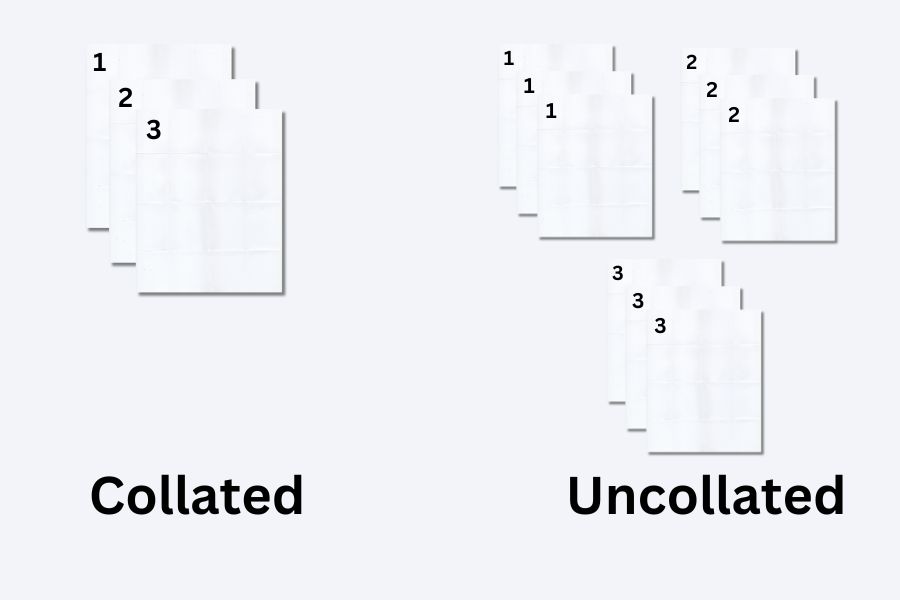
The table below is the short version. Print it out and tape it to the copier if your office keeps getting this wrong.
| Factor | Collated | Uncollated |
|---|---|---|
| Output order (3 copies of a 4 page file) | 1234, 1234, 1234 | 111, 222, 333, 444 |
| Ready to distribute | Yes, immediately | No, needs hand sorting |
| Best for | Reports, proposals, manuals, contracts, handouts | Flyers, single page handouts, forms, mail merges by page |
| Works with stapling or punching | Yes | No |
| Speed on a desktop printer | Often slower | Often faster |
| Speed on an office copier | Effectively the same | Effectively the same |
| Labor after the job finishes | None | Sorting time, sometimes hours |
| Cost per page | Identical | Identical |
Notice the last row. Collation does not change what you pay per sheet. It changes what you pay in staff time. That distinction gets lost constantly, and it is the reason a setting nobody thinks about ends up on expense reports as overtime.
When Collating Helps and When It Gets in the Way
Collated is the right default for anything a human reads front to back. Board packets. Employee handbooks. Closing documents at a title company. Patient intake forms. Training manuals. If the pages belong together, they should come out together.
Uncollated wins in narrower situations, and they are worth knowing. A five page product sheet going to a trade show booth, where each page is its own leave behind, should come out uncollated so your team can fan them across a table by product. Same logic for classroom worksheets handed out one page at a time, or forms stocked in a rack by type.
Estimated annual US business spending on printed paper that serves no purpose
Source: industry analysis compiled by Scanse, 2025
That number is not about collation alone. But sorting errors feed it directly. A misprinted 300 page job gets reprinted rather than resorted, because reprinting costs a few dollars of toner and resorting costs an afternoon. The paper goes in the bin. Nobody audits the line item it lands in.
Where Collation Actually Backfires
- Short runs on an entry level desktop printer with almost no onboard memory, where collating forces the driver to re-send the file once per copy
- Jobs going straight into a mail insert machine, which often expects page-grouped stacks
- Variable data runs where each sheet is already unique and grouping is meaningless
- Any workflow where a downstream machine, not a person, does the assembly
Outside those cases, leave it on. The default on most office equipment is collated for good reason.
How to Turn Collate On or Off
The setting lives in roughly the same place everywhere, though the label wanders. Sometimes it is a checkbox. Sometimes it is a dropdown offering Collated or Uncollated. On a copier touchscreen it may be called Sort, with Group as the opposite.
| Where you are printing from | Where to find the setting | What it is called |
|---|---|---|
| Microsoft Word (Windows) | File, then Print, under the copy count | Collated / Uncollated dropdown |
| Microsoft Excel | File, then Print, Settings panel | Collated / Uncollated dropdown |
| Adobe Acrobat and Acrobat Reader | Print dialog, next to Copies | Collate checkbox |
| Google Chrome and Google Docs | Print, then More settings | Collate checkbox |
| macOS print dialog | Copies field, expand if needed | Collated checkbox |
| Copier or MFP touchscreen | Finishing or Output menu | Sort (collated) or Group (uncollated) |
| Printer driver defaults | Settings, Printers and scanners, Printing preferences | Collate, applies to every job |
One detail catches people out. On most systems the collate control stays hidden or inactive until the copy count is two or more, because collating a single copy means nothing. If the box looks dead, check the number above it first.
For a walkthrough on one specific manufacturer, our team wrote up the HP printer collate setup steps separately, including where the option hides in older driver versions.
Why Collate Is Greyed Out, Ignored, or Stuck On
This is where the searches get frantic. The box is greyed out. Or it is checked and will not uncheck. Or you set it and the printer did something else entirely. Every one of those has a known cause.
The Box Is Greyed Out
- Copy count is one. By far the most common cause. Raise it to two and the control wakes up.
- The printer cannot collate. Basic inkjets and small all-in-ones sometimes lack the memory to hold a full document. Larger multifunction units handle it without blinking.
- The driver is broken or outdated. Remove the printer software and reinstall from the manufacturer, not from a generic Windows driver.
- A print server is enforcing the default. On a managed network, workstations inherit settings from the server. Without sufficient permissions, users cannot override them locally.
Collate Is Checked and Locked
Usually the application is collating the job itself rather than handing the instruction to the printer. Open Printing Preferences from the printer icon, confirm the driver level Collate box is clear, and the application setting should start behaving again. Brother documents this pattern in their support notes, and it shows up across other brands too.
You Set Collate and the Output Came Out Wrong
Two culprits. Either the application and the driver are both trying to collate, which can cancel out, or the job is larger than the printer memory and the device silently fell back to page grouping. Big scanned PDFs trigger the second one often. So do jobs with heavy images.
And if the pages came out in order but crumpled or misfed along the way, collation is not your problem. That is a paper path issue, and our printer jam troubleshooting walkthrough covers the usual suspects.
What Collating Does to Speed, Memory, and Machine Wear

There is a persistent myth saying collated printing is always slower. It was true once. On a cheap printer with a tiny buffer, collating means the computer re-sends the entire document for every copy, and on a 60 page file across 25 copies the network traffic alone drags.
Business class equipment removed the problem. A modern multifunction printer receives the job once, processes it once, and stores the rendered pages on internal memory or a drive. After that it can assemble copies in any order at full rated speed. Collated or grouped, the sheets per minute do not move.
Pages printed per office employee per year globally, down from 10,500 in 2019 and projected near 7,500 by 2027
Source: office printing volume research, Scanse 2025
Volumes fell. Document complexity did not. The average office prints fewer pages now, but a larger share of them are multipage sets headed for a client, an auditor, or a regulator. Which makes the collate setting more consequential per job, not less.
The Wear Angle Nobody Mentions
Uncollated jobs on a device with multiple trays sometimes pull every sheet from one cassette while the others sit idle. Collated jobs on a duplexing unit spread the work differently. Neither destroys a machine. Over years and millions of impressions, though, feed roller and separation pad wear does concentrate. Fleet reporting picks this up long before a technician does, and it is one of the quieter arguments for watching what your print fleet actually costs rather than guessing.
Stapling, Punching, and Booklets All Depend on It

Here is the part people discover the hard way. Finishing hardware cannot fix a sorting problem. A stapler in the finisher unit staples whatever set arrives. If the set is ten copies of page three, it staples ten copies of page three.
So on any machine with a finisher, collation is not optional. It is the precondition. Hole punching, corner stapling, saddle stitching for booklets, offset stacking so sets separate visibly in the tray, all of it assumes ordered input.
- Corner staple: needs collated sets, one staple per set
- Two or three hole punch: needs collated sets if the packets go into binders
- Saddle stitch: needs collated sets in imposed page order for a folded booklet
- Offset stacking: shifts each collated set slightly so you can grab them cleanly
- Booklet fold: useless without collation, the fold would land mid document
If your office runs proposals, bid packages, or patient education booklets, this matters more than the print settings dialog suggests. Choosing a device with the right finisher is part of choosing a device at all, and it is something worth raising before you sign, not after. Our rundown of what multifunction printers actually do covers which finishing options come standard and which cost extra.
What This Looks Like in a Daytona Beach or Orlando Office
Abstract print settings get concrete fast in a real office. A few patterns show up repeatedly across the businesses Smart Technologies supports along the I-4 corridor and the coast.
Law firms in Daytona Beach run closing packets and discovery sets, often hundreds of pages, frequently under deadline. Collation failures there do not cost toner. They cost billable hours and occasionally a filing window.
Medical practices around Orlando print intake packets in batches. Each packet needs identical page order for compliance review, and a shuffled set is a records problem rather than an inconvenience. Practices working under HIPAA constraints have a second reason to care: a misordered packet is more likely to get reprinted, and the misordered original is more likely to sit on an output tray where it should not.
Hospitality and property management operations along the coast print guest directories, vendor contracts, and seasonal training material in bursts. Volume is spiky. A sorting bottleneck in April does not show up in the January budget.
Schools, municipal offices, and nonprofits across Volusia and Seminole counties tend to have older equipment with less memory, which is exactly the hardware where the old collation speed penalty still bites. Smart Technologies of Florida sees this one constantly, and it is usually cheaper to fix with a memory upgrade or a driver correction than with a new machine.
None of these businesses called about collation. They called about deadlines, reprints, and staff time. The setting turned out to be a piece of the answer.
How Smart Technologies Helps
Driver and Default Audits
We check what your drivers and print server actually enforce, then set sane defaults so staff stop fighting greyed out checkboxes.
Right Sized Equipment
Matching device memory and finishing options to the documents you really produce, not to a spec sheet.
Managed Print Services
Fleet visibility, automatic supply delivery, and reporting on what each department prints and what it costs.
Finisher Configuration
Stapling, punching, and booklet setup configured and tested, so finishing works on day one.
Local Service Response
Technicians based in Central Florida, not a queue in another time zone. Founded here in 1999.
Document Workflow Help
Scanning, routing, and automation for the packets you would rather not print at all.
Plenty of offices run the same copier for years without knowing what half its output settings do. A short walkthrough usually pays for itself in recovered staff time. If you want the broader argument for collated output, our companion piece on the benefits of collating multipage print jobs goes deeper on the workflow side, and the printers and copiers lineup shows what current hardware handles.
Frequently Asked Questions About Collate Printing
What does collate mean when printing?
Collate means the printer assembles each copy as a complete set in page order before starting the next copy. Ten collated copies of a five page document produce ten finished sets rather than five stacks sorted by page number.
Should I print collated or uncollated?
Choose collated for anything read front to back, such as reports, contracts, manuals and handouts. Choose uncollated when each page works as a standalone item, such as trade show flyers or forms stocked by type in a rack.
Why is the collate option greyed out?
The most common reason is a copy count of one, since collating a single copy has no meaning. Other causes include a printer without enough memory to collate, an outdated or corrupted driver, or a print server enforcing the setting across the network.
Does collating cost more to print?
No. Collated and uncollated jobs use the same number of sheets and the same amount of toner, so the cost per page is identical. The real difference is staff time spent sorting pages afterward.
Is collated printing slower?
On a basic desktop printer it can be, because the computer may re-send the document for each copy. On a business class multifunction printer the job is processed once and stored in memory, so collated and uncollated jobs run at the same speed.
What is the difference between collate and sort on a copier?
They mean the same thing. Copier touchscreens often label collated output as Sort and uncollated output as Group, while computer print dialogs use the words Collated and Uncollated.
How do I collate when printing from Microsoft Word?
Open File, then Print, set the number of copies, and look just beneath the copy count for a dropdown offering Collated or Uncollated. Select Collated and print. The same control appears in Excel and PowerPoint.
How do I collate a PDF in Adobe Acrobat?
Open the Print dialog, enter your copy count, and tick the Collate checkbox next to Copies. If the box does not appear, raise the copy count to two or more and it will become available.
Can every printer collate?
No. Entry level inkjets and small all-in-one units sometimes lack the onboard memory to hold a full document, so they cannot assemble sets. Most office multifunction printers and copiers collate without difficulty.
Why did my printer ignore the collate setting?
Either the application and the printer driver are both trying to collate and the instructions conflict, or the job exceeded available printer memory and the device fell back to page grouping. Large scanned PDFs and image heavy files trigger the second case most often.
Do I need collated output for stapling or hole punching?
Yes. A finisher staples or punches whatever set reaches it. Without collation it would staple ten copies of the same page together, so ordered sets are a precondition for every finishing option including saddle stitched booklets.
How do I set collate as the default for every print job?
Open Settings, go to Printers and scanners, select your device, and choose Printing preferences. The collate option set there applies to all jobs sent to that printer, unlike changing it inside a single application.
Does collating affect double sided printing?
No, the two settings are independent. Duplex printing controls which side of the sheet gets used, while collation controls the order pages leave the machine. Both can run at the same time on any duplex capable device.
Who can help if our office printer keeps collating incorrectly?
Smart Technologies of Florida services copiers and multifunction printers across Central Florida from Daytona Beach to Orlando. Call (386) 252-2292 for a driver audit, a memory upgrade assessment, or a managed print review.
Where to Read More
For the plain language definition, Merriam-Webster is the reference most print shops cite. For device level behavior, manufacturer documentation beats forum guesswork: HP support and Xerox multifunction printer documentation both publish driver specific instructions worth checking before you reinstall anything.
And if the packets you keep printing exist only because a process demands paper, the more useful conversation is about the process. Smart Technologies works on both halves of that problem.
Stop Sorting Paper by Hand
Get a free assessment of your print fleet, your driver defaults, and your finishing options. Central Florida service since 1999. Call (386) 252-2292.
GET A FREE QUOTE
Business Transformation Agency
Related Posts

— How Managed Document Services Can Transform Your Daytona Beach Business

— Advanced Imaging Solutions: 5 Ways Document Imaging Benefits Your Business